Moving Wallpaper: A Complete Guide to Animated Backgrounds for Phones, Desktops, and Home Screens
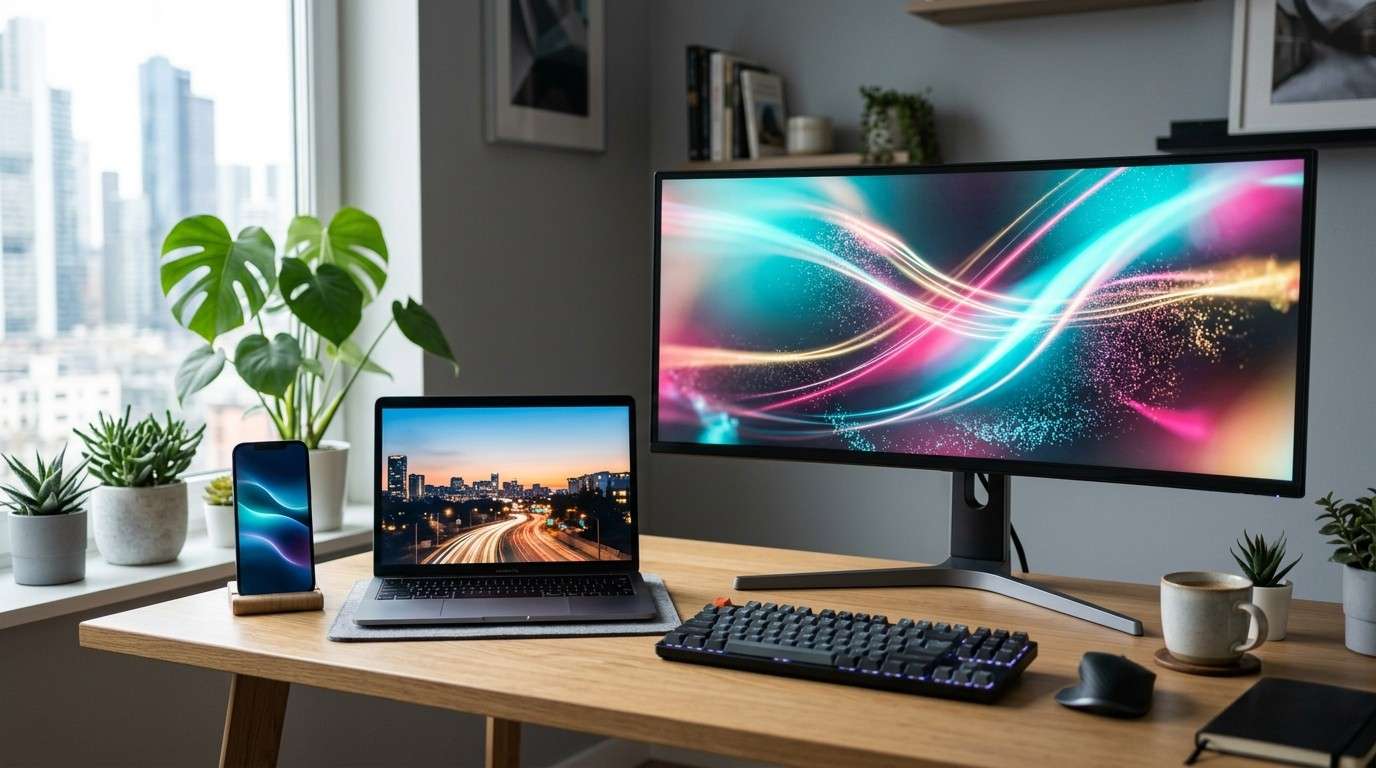
A still background can look beautiful, but a screen with gentle motion feels alive. That is why moving wallpaper has become a favorite choice for people who want their phone, tablet, or computer to feel more personal. A slow ocean wave, glowing city skyline, drifting cloud scene, or subtle abstract loop can change the mood of a device.
The best part is choice. Some people want a clean lock screen that moves only when the phone wakes. Others want a desktop that shows rain, snowfall, space, anime art, nature, or a soft cinematic loop. The challenge is knowing what works, what drains battery, what is safe to download, and how to pick a design that still feels good after a week. This guide explains moving wallpaper in practical terms, from setup and formats to performance, safety, and style.
What Is Moving Wallpaper?
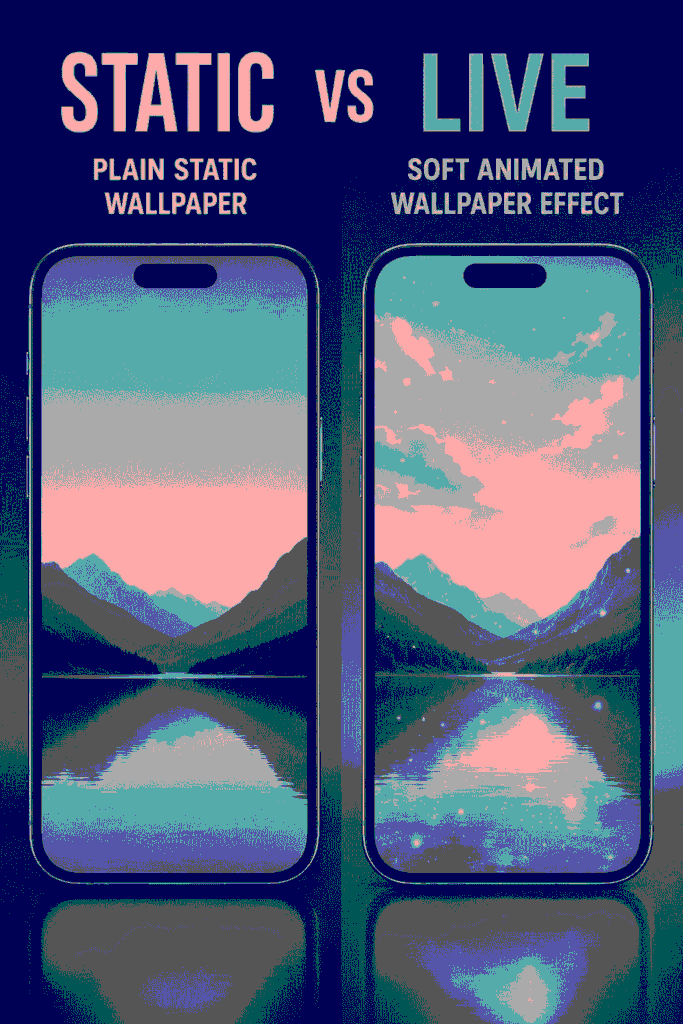
Moving wallpaper is a digital background that includes motion instead of staying completely still. It may be a short looping video, an animated graphic, a Live Photo, a 3D scene, or an interactive background that reacts to touches, time, sound, or movement. On a phone, it is usually used on the lock screen or home screen. On a desktop, it can run behind icons and open windows.
The motion can be bold or almost invisible. A gaming setup might use neon cyberpunk animation. A work laptop might use slow clouds or a minimal gradient. A phone lock screen might show a Live Photo that plays when the screen wakes. In simple words, it turns the background into a visual layer that adds mood, personality, and movement without needing a full app open.
Why Moving Wallpaper Is So Popular in 2026
People spend hours looking at screens, so customization matters. A background is one of the easiest ways to make a device feel less plain. Moving wallpaper gives that customization more emotion because motion can suggest calm, speed, fantasy, luxury, nature, or focus. A static forest photo looks peaceful. A forest scene with drifting mist feels deeper and more immersive.
Another reason is better display quality. Modern phones, tablets, and monitors show sharper color, higher refresh rates, and smoother motion than older screens. A 4K animated background can look crisp on a large monitor, while a simple Live Photo can make a phone lock screen feel personal without needing heavy animation. Users also like seasonal changes. A summer beach loop, fall leaves, winter snow, or a holiday animation can refresh the screen without changing the device itself.
Moving Wallpaper vs Live Wallpaper vs Dynamic Wallpaper
These terms are often used together, but they do not always mean the same thing. Moving wallpaper is the broad phrase. It covers any background that includes movement. Live wallpaper usually refers to an animated or interactive background built for a device or app. Dynamic wallpaper often means a background that changes based on time, system settings, weather, focus modes, or other conditions.
On Android, live backgrounds can be more flexible because the system supports wallpaper services. On iPhone, Live Photos and built-in animated options are more controlled, especially around the lock screen. On Windows, third-party apps are common for animated desktop backgrounds, while native video wallpaper support has been limited and inconsistent over time. On macOS, built-in dynamic desktops can change with time of day, while video-style motion often depends on apps.
Best Types of Moving Wallpaper for Everyday Use
Not every animation belongs on every screen. The best choice depends on where you use the device and how much motion you enjoy. Subtle loops are usually best for daily use because they do not distract you. Slow rain, soft gradients, water ripples, clouds, candlelight, and minimal particles work well on work devices and phones.
Bold styles are better for gaming setups, entertainment screens, or personal desktops. Anime, cars, sci-fi cities, fantasy portals, sports graphics, and music visualizers can look exciting, but they may feel busy during work. If you use many widgets or app icons, choose a darker or softer background so text remains readable. The most useful animated wallpaper is not always the most dramatic one. It is the one that looks good, stays readable, and does not annoy you after daily use.
How to Choose the Right Moving Wallpaper for Your Device
Start with screen size. A vertical phone background should match a portrait layout. A desktop background should match your monitor resolution, such as 1920×1080, 2560×1440, 3440×1440, or 3840×2160. Using the wrong size can cause cropping, blur, or awkward stretching. For phones, choose a design with the main subject near the center because clock widgets, notifications, and icons may cover the edges.
Next, consider motion speed. Fast loops grab attention, but they can also become tiring. Slow motion is easier to live with. Also check contrast. If the animation is too bright behind app names, widgets, or desktop icons, it can make the screen harder to use. For OLED phones, darker designs may feel more comfortable at night. For laptops, lightweight animation is often better because it reduces battery and heat concerns.
How to Set Moving Wallpaper on iPhone
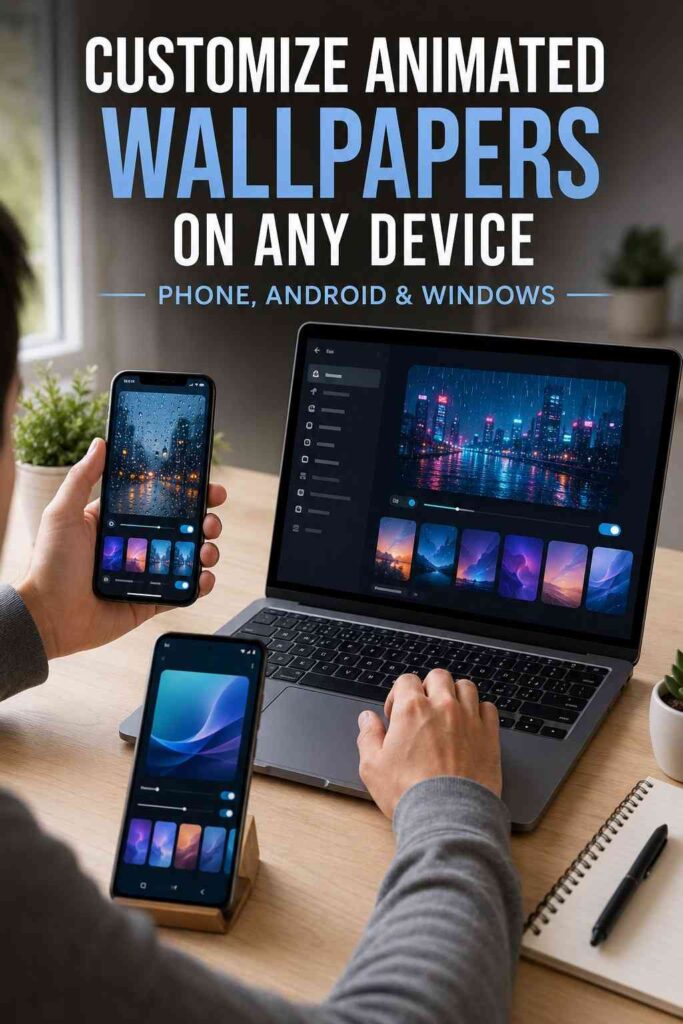
On iPhone, the easiest route is usually a Live Photo or a built-in animated lock screen option. A Live Photo can play when the lock screen wakes, depending on the iOS version and the selected settings. Open Settings, go to Wallpaper, choose Add New Wallpaper, then select Photos and filter or choose a Live Photo. After previewing, tap Add and decide whether to use it as a wallpaper pair or customize the home screen separately.
For the best result, use a Live Photo with a clear subject and gentle motion. Short clips such as hair moving in the wind, waves, pets, city lights, or candles often look natural. Keep in mind that the home screen may show a still version while the lock screen carries the motion effect. If the animation does not play, check whether the selected file supports motion, whether the play option is enabled, and whether power-saving settings are limiting effects.
How to Set Moving Wallpaper on Android
Android gives users more flexibility. Many Android phones allow live backgrounds through the wallpaper picker, manufacturer theme store, or dedicated apps. Long-press the home screen, choose Wallpaper & style or a similar option, then look for Live wallpapers. Some devices also allow video files to be set as lock screen backgrounds through the gallery or theme app.
The Android experience can vary by brand. Samsung, Google Pixel, OnePlus, Xiaomi, and Motorola may organize wallpaper settings differently. If you use a third-party app, review permissions before installing. A simple wallpaper app should not need access to contacts, microphone, or messages. After applying animated wallpaper, watch battery use for a day. If the phone warms up or drains faster, switch to a simpler loop or use motion only on the lock screen.
How to Use Moving Wallpaper on Windows
Windows users often rely on apps such as Lively Wallpaper, Wallpaper Engine, or desktop live wallpaper tools. These apps can turn videos, GIFs, websites, or interactive scenes into desktop backgrounds. The setup is usually simple: install the app from a trusted source, pick a background from the library or import your own file, then adjust playback, sound, pause behavior, and monitor settings.
For work computers, choose a tool that pauses animation when full-screen apps or games are active. That feature can reduce distractions and system load. If you have multiple monitors, check whether the app supports spanning, duplicating, or assigning different backgrounds to each display. An animated wallpaper on Windows can look impressive, but it should not interfere with productivity. Test it with your usual apps open before deciding it is your daily background.
How to Use Animated Wallpaper on Mac
Mac users have built-in options for changing desktop backgrounds, including dynamic desktops that shift with the time of day. These are not always video backgrounds, but they create a changing visual experience with little effort. For video loops or animated desktop effects, third-party apps are usually needed.
A MacBook user should be cautious because battery life matters. Pick slower animations, avoid long high-resolution videos, and check Activity Monitor if the system feels warm. On large iMac or external displays, soft nature, abstract, or architectural loops can look excellent.
Best File Formats and Resolution Tips
Common formats include MP4, MOV, GIF, WEBM, and Live Photo formats on iPhone. For most users, MP4 is the safest and most practical format because it offers good quality with reasonable file size. GIFs are easy to find, but they can be larger, less smooth, and less efficient than video files. For desktops, a short loop in MP4 often looks cleaner than a heavy animated GIF.
Resolution matters, but bigger is not always better. A 4K loop can look sharp on a 4K monitor, but it may be unnecessary for a phone or lower-resolution laptop. A clean 1080p loop can look better than a poorly compressed 4K file. Frame rate matters too. 30 fps is usually enough for gentle motion. Higher frame rates may look smoother, but they can also use more resources. Aim for a balance between visual quality and comfort.
Performance, Battery, and Storage: What to Know
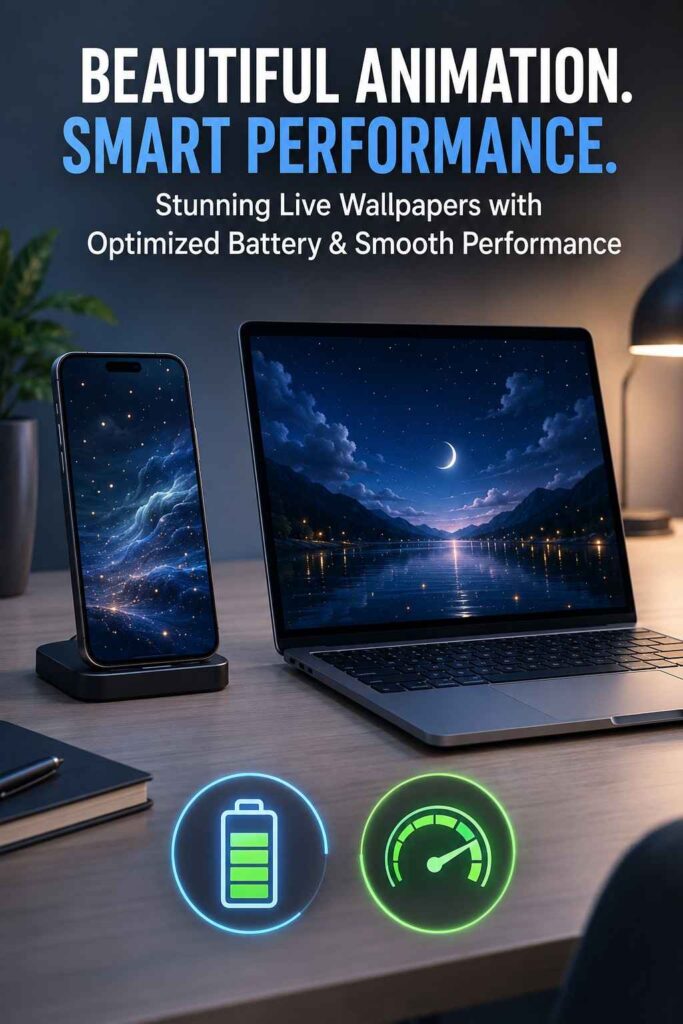
The main concern with animated wallpaper is resource use. Motion requires processing, even when it feels simple. On phones, that can affect battery. On laptops, it can affect battery, heat, and fan noise. On desktops, the impact may be small, but it still depends on the file, app, resolution, and whether the animation pauses when windows are full-screen.
Use lightweight loops for daily use. Avoid long videos, sound-based visualizers, or website wallpapers if your device is older. Keep file sizes reasonable and remove backgrounds you no longer use. If a wallpaper app offers settings for quality, frame rate, pause behavior, or battery mode, adjust them. The goal is not to force the device to show the most complex animation. The goal is to enjoy motion without sacrificing speed, readability, or comfort.
Safety Checklist Before Downloading Moving Wallpaper
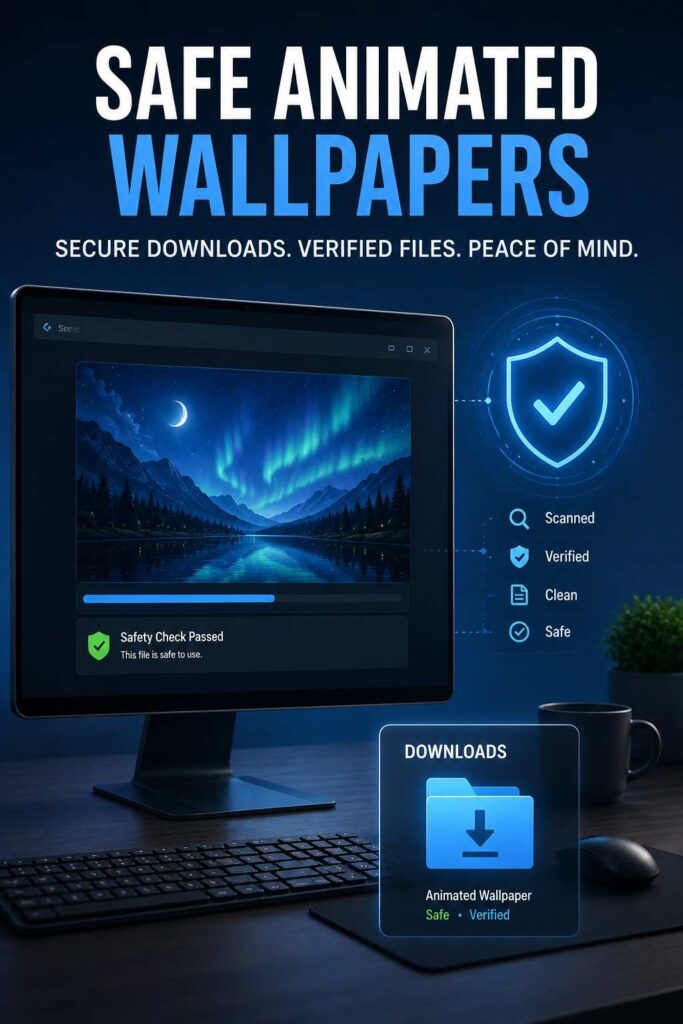
A beautiful background is not worth a risky download. Use trusted app stores, official websites, or well-known creative libraries. Avoid random executable files, password-protected archives, and wallpaper packs that ask you to run scripts. Be especially careful on desktop platforms where some animated backgrounds can include interactive or application-like features.
Before installing, check the publisher, reviews, update history, file type, and permissions. A video file is usually less risky than an unknown program. If a wallpaper tool requires broad system access, ask whether that access makes sense. Keep your operating system, browser, and security software updated. If you download from community libraries, choose files with clear previews, active moderation, and transparent comments. Good visuals should come with basic digital hygiene.
Design Ideas for a Stylish Home Screen
A screen background works best when it fits your real style, not just your device. If your room has neutral walls, wood tones, soft lamps, or plants, a nature-based animated background can make the screen feel like part of the space.
Seasonal screens work well with summer diy ideas, especially when a handmade tray, linen throw, or painted frame repeats the colors of your display. This approach makes animated wallpaper feel intentional instead of random.
Best Moving Wallpaper Styles by Mood
For calm, choose rain, slow waves, mist, forests, candles, soft clouds, or a gentle night sky. These styles help a screen feel peaceful without demanding attention. For focus, choose minimal gradients, dark abstract shapes, slow particles, or monochrome motion. These designs keep icons and widgets readable while adding a modern look.
For energy, choose neon streets, racing cars, sports moments, anime power scenes, music visualizers, or sci-fi cities. For luxury, look for marble motion, gold particles, silk fabric, underwater light, or slow architectural scenes. For seasonal use, rotate between spring flowers, summer beaches, autumn leaves, winter snow, and holiday lights. An animated wallpaper should match the way you want your device to feel when you unlock it.
Accessibility and Readability Matter
Motion can be enjoyable, but it should not make a screen harder to use. Some people are sensitive to movement, flashing, or strong contrast. If you feel eye strain, dizziness, or distraction, switch to slower motion or a static image. Avoid backgrounds with flashing lights, fast shaking, intense zoom effects, or heavy flicker.
Readability is just as important. App labels, widgets, time, battery icons, and notifications need contrast. If your wallpaper is bright, use darker widgets or a blurred home screen. If it is dark, use lighter icons and avoid tiny text. On desktops, arrange icons away from the busiest part of the animation. Good design is not only about beauty. It is about making the device easier and nicer to use. Blending digital backdrops with home styling can use outinteriors as a reference point for outdoor-inspired palettes and relaxed textures.
How to Make Your Own Moving Wallpaper
Creating your own background can feel more personal than downloading one. Start with a short video clip, Live Photo, animated design, or looped graphic. Nature clips work especially well because small motion feels natural. Try water, trees, clouds, firelight, pets, city lights, or fabric movement. Keep the clip short, steady, and clean.
For phones, crop vertically and keep the subject away from the top clock area. For desktops, crop to your monitor resolution and leave space for icons. Remove sound unless you are making a visualizer. If the loop has a visible jump, trim it until the start and end frames feel similar. A personal animated wallpaper does not need to be complex. A three-second clip with good light can feel better than a crowded animation. For a softer coastal setup, pair slow ocean loops with capiz shell decor so the shimmer on-screen echoes the light in the room.
Common Problems and Easy Fixes
If the background does not move, first check the file type and device support. Some phones display motion only on the lock screen. Some desktops require an app to run in the background. If the animation looks blurry, download a higher-resolution version or choose a file that matches your screen ratio. If it crops badly, use a version made for your device size.
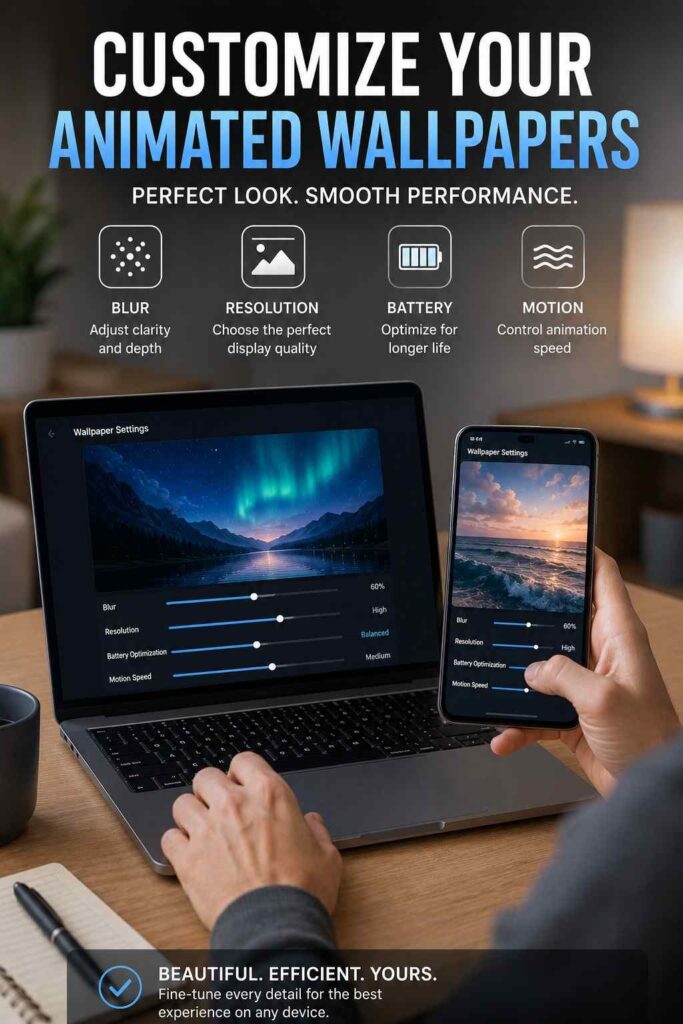
If the device slows down, reduce resolution, frame rate, or animation complexity. If the battery drops quickly, use motion only on the lock screen or choose a built-in dynamic option. If icons are hard to read, apply blur, choose a darker version, or move widgets away from the busiest area. If an app behaves strangely, remove it and use a trusted alternative.
Mistakes to Avoid
Do not choose a background only because it looks impressive in a preview. Fast, bright motion can feel annoying during daily use. Avoid heavy files on older devices, apps with unnecessary permissions, and copyrighted artwork in public or commercial projects. A lock screen can handle drama, but a home screen or work desktop usually needs calm motion.
Final Tips Before You Choose
The best moving wallpaper is personal, practical, and safe. Start with a soft loop, use it for a full day, and notice how it feels. Does it distract you? Does it drain battery? Does it make your screen easier or harder to read? Those answers matter more than a preview thumbnail.
Once you find a style you like, keep a small collection: one calm option for work, one expressive option for weekends, and one seasonal option for holidays or summer. Used well, animated wallpaper adds personality in a simple way. It makes a familiar screen feel new again while keeping function first.
Conclusion:
Moving wallpaper is more than a decorative trend. It is a simple way to make phones, desktops, and lock screens feel expressive, modern, and personal. The right choice can create calm, energy, style, or seasonal warmth every time you open your device. The wrong choice can drain battery, distract you, or make icons hard to read.
Choose slow, clean motion for daily use. Match the resolution to your screen. Use trusted sources. Check permissions. Keep readability and comfort in mind. Whether you prefer soft rain, glowing city lights, ocean waves, anime art, or a personal Live Photo, a thoughtful animated background can make your screen feel alive without getting in the way.
Frequently asked questions About Animated Wallpaper
Is moving wallpaper bad for battery life?
It can use more battery than a static image, especially on phones and laptops. The impact depends on the animation, resolution, app, and device. A short, subtle loop usually uses fewer resources than a long 4K video or interactive visualizer.
Can I use moving wallpaper on iPhone?
Yes. Support depends on the iOS version and wallpaper type. Live Photos and selected animated options are commonly used on the lock screen, while the home screen may show a still version.
Can Android phones use video wallpapers?
Many Android phones can use live or video backgrounds through built-in settings, theme stores, or third-party apps. The exact steps vary by brand, so check your device’s wallpaper menu.
Does animated wallpaper slow down a computer?
It can, especially if the file is high-resolution, interactive, or running through a heavy app. Choose lightweight loops and enable pause settings when games or full-screen apps are open.
What is the best format for animated backgrounds?
MP4 is usually practical because it offers good quality and manageable file size. GIFs are common but may be larger or less smooth. For iPhone, Live Photos work well for lock screen motion.
Is it safe to download free animated wallpapers?
It can be safe when you use trusted sources and avoid suspicious files. Do not run unknown executables, scripts, or password-protected wallpaper packs. Check app permissions and reviews first.
What style works best for daily use?
Subtle styles usually work best. Rain, clouds, soft gradients, water, stars, and slow particles add atmosphere without becoming distracting. Bold designs are better for occasional use.